Turn any phone into a gate check-in device. Scan a driver's QR code and they're marked checked in instantly. While the full roster, open on a tablet, updates on its own.
The idea is simple: the phone is just a scanner, the tablet keeps the full roster. They work together but never get in each other's way.
Set it up once
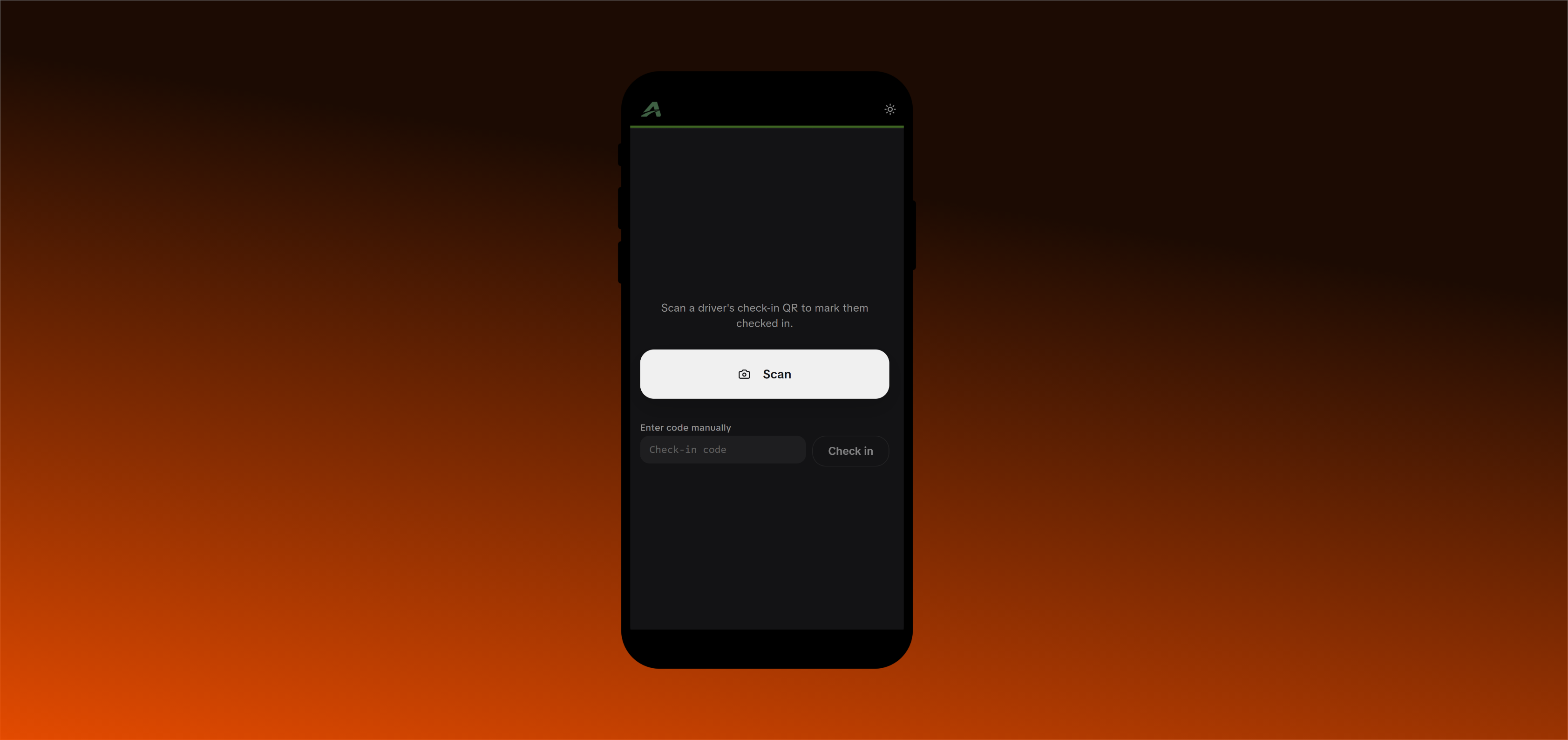
On the phone, open the scanner, sign in, and add it to the home screen. After that it opens full-screen like a real app. One tap to launch.
- Open
/admin/scanon the phone and sign in with your Google account (the same login you use everywhere in Pro Admin). - Tap Install to add it to the home screen.
Why install it
Installing makes it open full-screen with no browser bars, and it stays signed in, so at the gate it's one tap from the home screen to scanning.
Check someone in
- Tap the big Scan button. The back camera opens with a framing guide.
- The driver shows their check-in QR code.
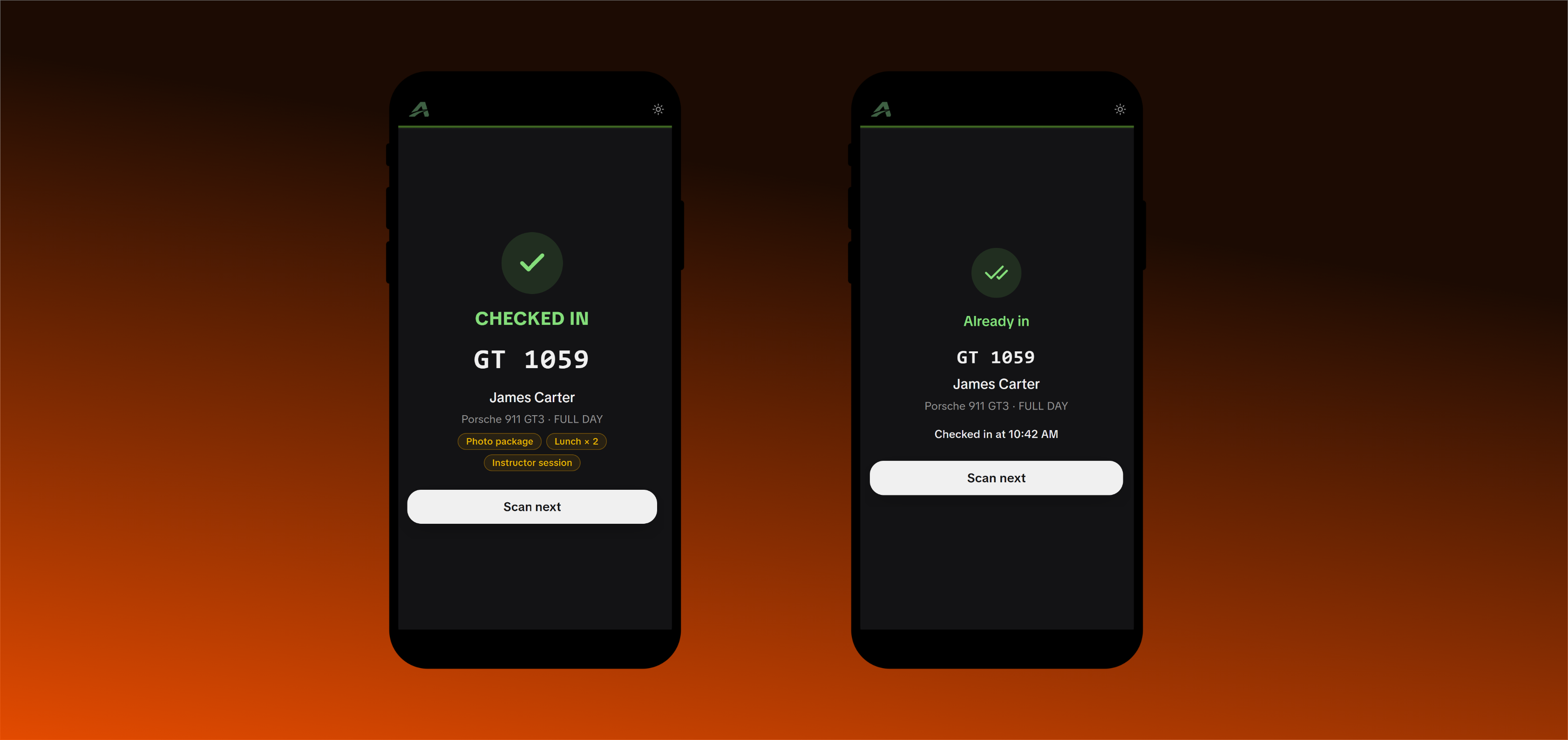
- The moment the code is read, you get a large, glanceable result: a green CHECKED IN, the licence plate shown big, plus car and name underneath.
- Tap Scan next for the following driver.
You don't pick an event first. Each code already knows which driver and which event it belongs to, so one operator can check in drivers across any of your events from the same screen.
The app roster can do this too
In the Lapvio app's Organizer mode, the Roster tab checks drivers in without scanning: one tap for a ready driver, Override & check in on their card for someone with missing steps, and a Portal QR you can show a driver so they finish their briefing or waiver on their own phone, right at the gate.
Where the driver's QR comes from
A driver only gets their check-in QR once they're fully ready. Details complete, briefing done, and waiver signed. Only the steps your event actually uses count: an event without a briefing or waiver doesn't require that step. It appears in four places:
- in their event portal (their personal page),
- in their confirmation email, so it's already in their inbox at the gate,
- in the Lapvio app, on the next-event card (works offline at the paddock), and
- on their Lapvio dashboard on the web, on the same card.
This QR is check-in only
The check-in QR can't be used to log in as the driver or open their portal, so it's safe even if someone photographs it. It's a different code from the "portal access" QR, which is the one the driver scans to open their own page.
What the screen tells you
The scanner is built for real gate situations. Every outcome is clear at a glance.
| Result | What you see |
|---|---|
| Checked in | Big green tick, licence plate, car and name |
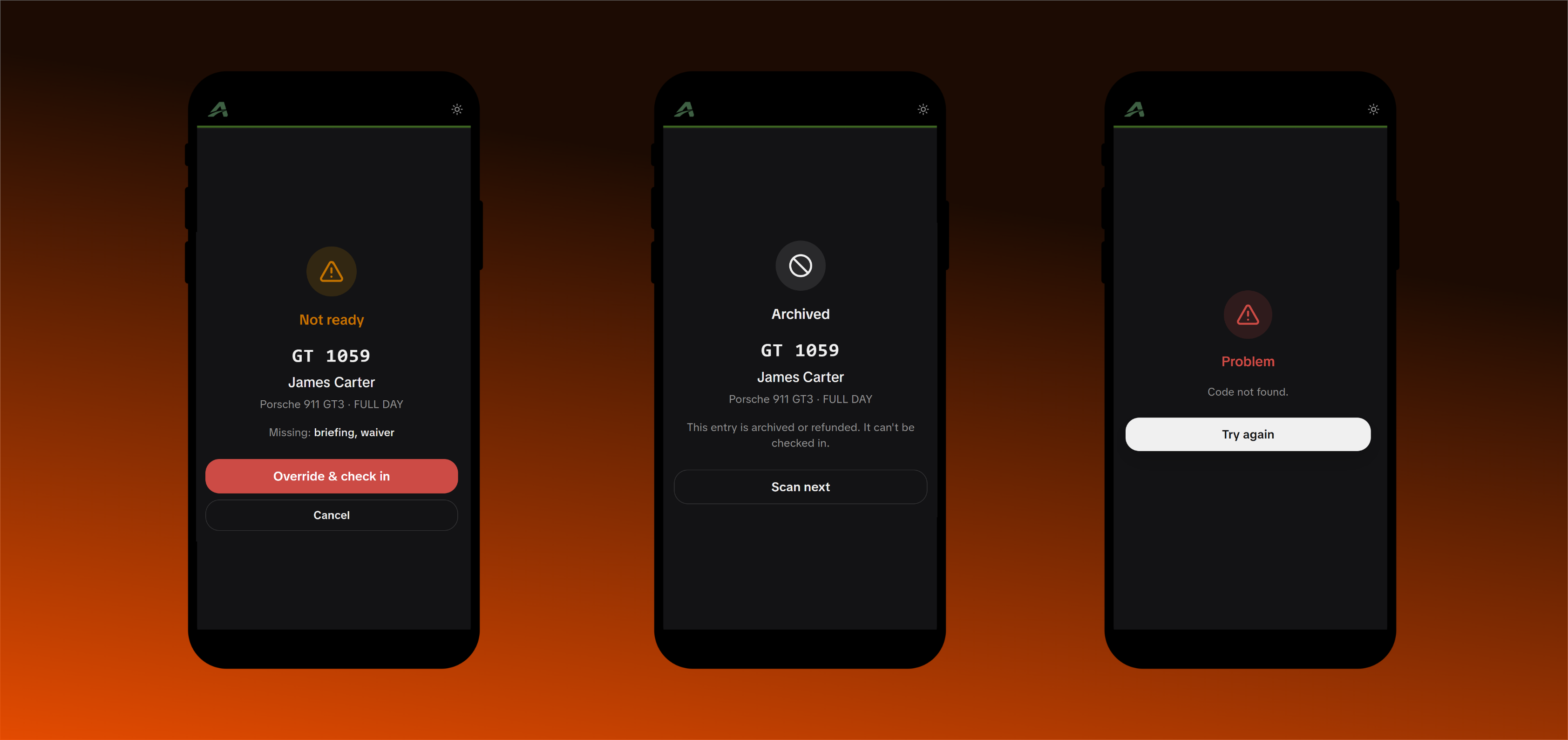
| Not ready | Amber warning naming what's missing (details / briefing / waiver), with Override & check in or Cancel. You decide |
| Already checked in | A neutral note with the time they were checked in. Never treated as an error |
| Archived / refunded | Blocked with a clear message |
| Bad or unknown code | A short "not found" message and a retry |
| Camera won't open | A clear message, and you can fall back to typing the code by hand |
Good to know
- Scanning and manual check-in are the same thing. A scan ticks the exact same box as the check-in toggle on the roster, so the two are interchangeable. Undo a scan from the roster, or check someone in by hand and the scanner recognises them as already done.
- No double-ups. Scan the same driver twice and the second scan just says "already checked in". Nothing breaks.
- Manual fallback is always there. If a camera fails or a code won't scan, type the code into the box on the start screen.
Using Override
Override & check in lets a driver through who hasn't finished briefing or waiver. Use it only when you've confirmed they're genuinely cleared. It's the same override as the amber action on the roster.