The Lapvio app is one app with more than one mode. By default it is your driver app. Because your account is also an organisation admin, an Organizer mode appears alongside it, built for the things you actually do standing in the paddock.
Get the app and switch mode
Install the app from the Lapvio app page on lapvio.com and sign in with the same email you use for your admin. No second account, no separate password.
Then open the You tab and tap the mode chip at the top. Pick Organizer. The whole bottom bar changes with it, tinted in your own brand colour, and switching back is the same two taps.
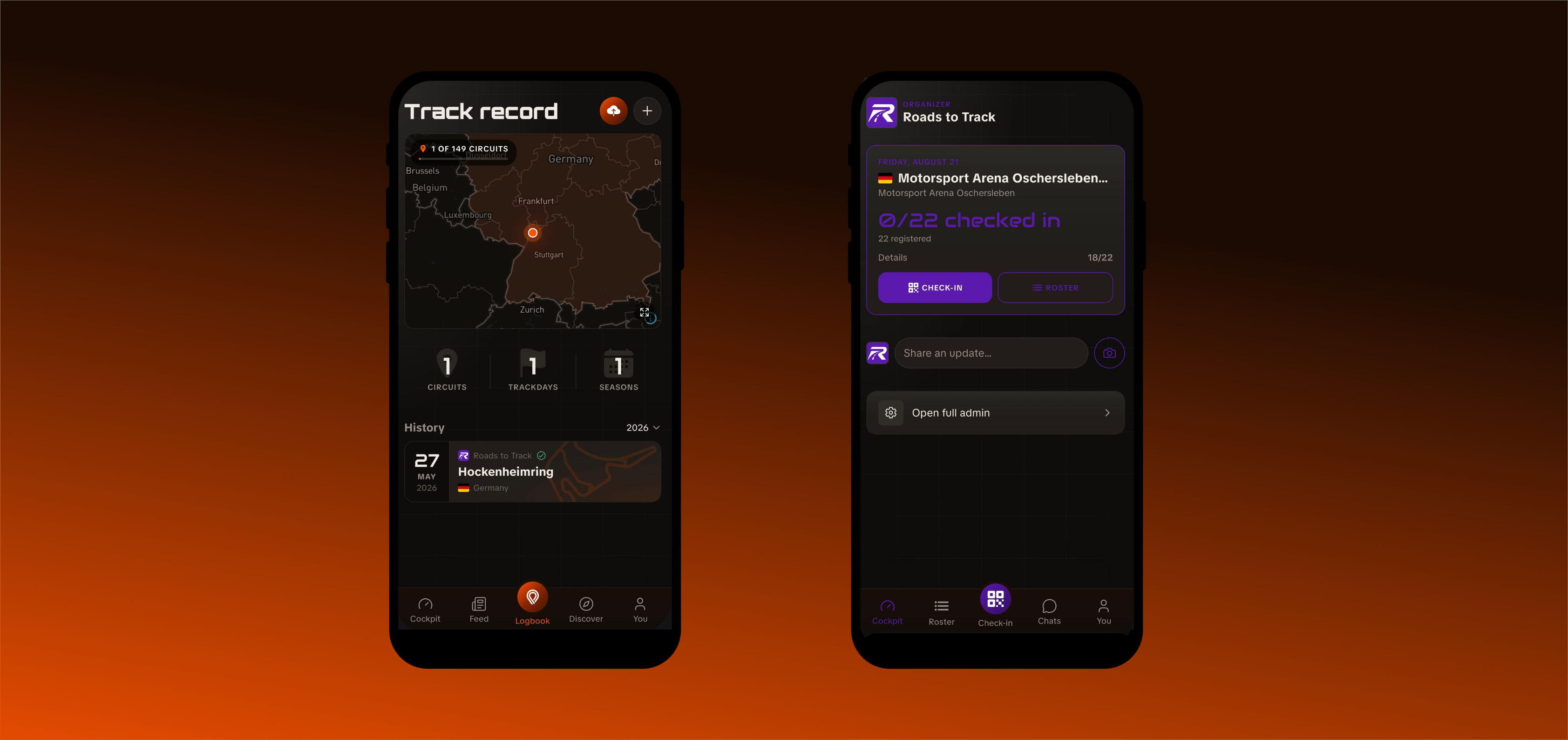
Roster and Check-in look empty?
Organizer mode is there for every organisation admin, but the roster and the scanner only have people in them once you sell tickets on Lapvio: that is where Lapvio learns who is coming to your events. Connect Stripe under Payments in your admin and they fill up. See Sell tickets on Lapvio.
What Organizer mode contains
| Tab | What it does |
|---|---|
| Cockpit | The selected event and how check-in is going, switchable to any other |
| Roster | The driver list: filters, one-tap check-in and a detail card per driver |
| Check-in | The QR scanner, in the middle of the bar where your thumb is |
| Chats | Your event conversations with registered drivers |
| You | Your account, settings and the mode switcher |
The cockpit
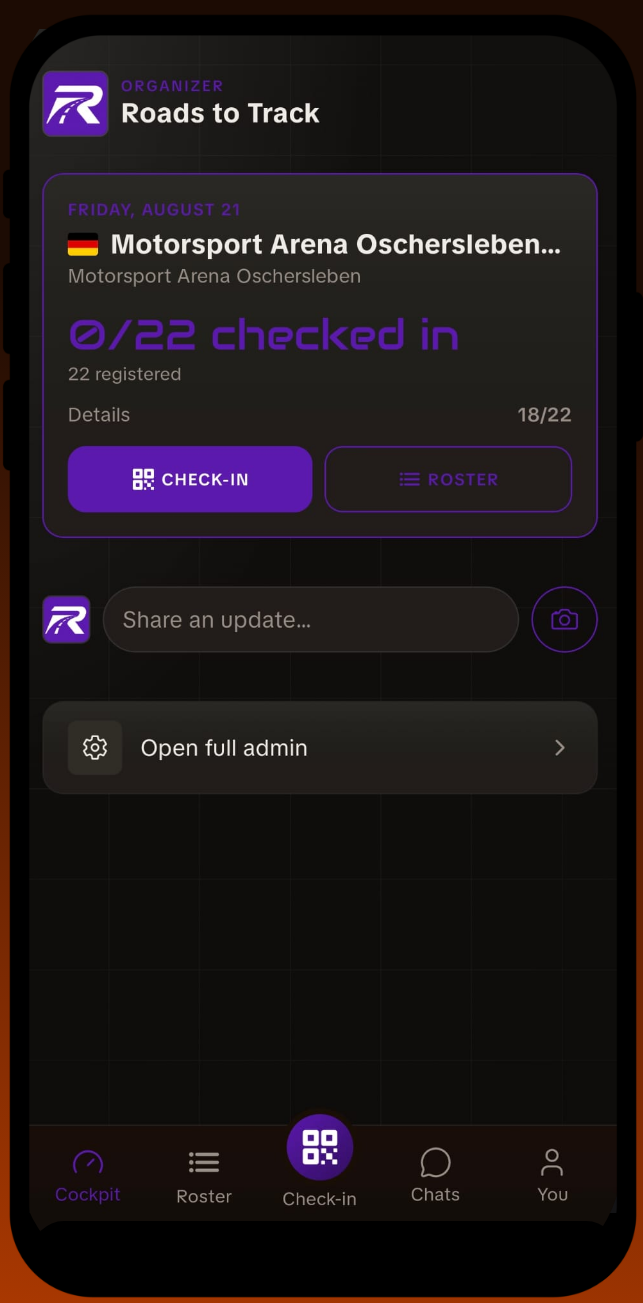
The card at the top starts on your next event with registrations: date, circuit, how many are registered and how many are checked in. Tap the event name to switch to any other trackday, upcoming ones and the last week's, each listed with its own numbers, so a multi-event weekend or yesterday's final count is one tap away. The roster follows whatever you pick here.
Under the numbers sit the trackside buttons: Check-in and Roster for the gate, and Admin, which opens that event in the web admin. Your follower count sits under the organisation name, and tapping it opens your public profile.
The roster
The filters answer the gate question, who am I still waiting on: All, Not checked in, Missing steps, plus a chip per ticket type on multi-session days. The search matches names and licence plates, so the car pulling up is enough to find its driver.
One tap on the circle checks a ready driver in. A driver with missing steps opens their card instead, which spells out what is missing, and the button there says Override & check in, so waving someone through is always a deliberate choice. A fresh check-in shows a short Undo on the row.
The driver card is the paddock toolkit: call or text them, see their add-ons and notes, and show them the Portal QR. They scan it with their own phone, land in their event portal, and finish their remaining steps right there at the gate.


PRO adds the paper trail: a Flag button on the driver's card (a payment due with the amount, an incident, a no-show) that you can also resolve right at the gate, Mark no-shows on the Not checked in view after the event, and a Note button on the cockpit that writes the event's debrief note. All of it lands in the event's Reconciliation view on the web. When the organiser has written Focus points for the event, they show as a card under the cockpit's event hero with an I've read this button, and the Roster header carries a dot until you confirm; you get a push when they are published or changed, and a reminder the evening before if you have not confirmed.
Posting as your organisation
The cockpit also has a composer. Write a line, or go straight to the camera for a paddock photo, and it publishes as your organisation: into the feeds of drivers who follow you, and onto your public profile's Feed tab.
A photo from the grid at lunchtime is worth more than a polished post two weeks later.
The app pings you
Two pushes do the remembering for you. The evening before an event, a digest: how many drivers are coming and what is still missing. And on event day, about an hour before the end, a heads-up if anyone never checked in.
What stays on the web
The phone is for the day. The desk work stays in the web admin:
- creating and editing trackdays,
- payments, VAT and your cancellation policy,
- orders and refunds,
- your public profile and your team.
Sign in on any browser, on the phone included, and it all works.
PRO adds driver readiness to the same trackside view, so the scanner tells you who has completed their briefing and signed their waiver, not only who has paid.
Your drivers are in the same app
Worth remembering when you decide what to post: the drivers at your event are using the same app, on the driver side. Your event is on their next-event card, their entry QR is in their pocket, and your Feed post lands in their feed. See What your drivers get.