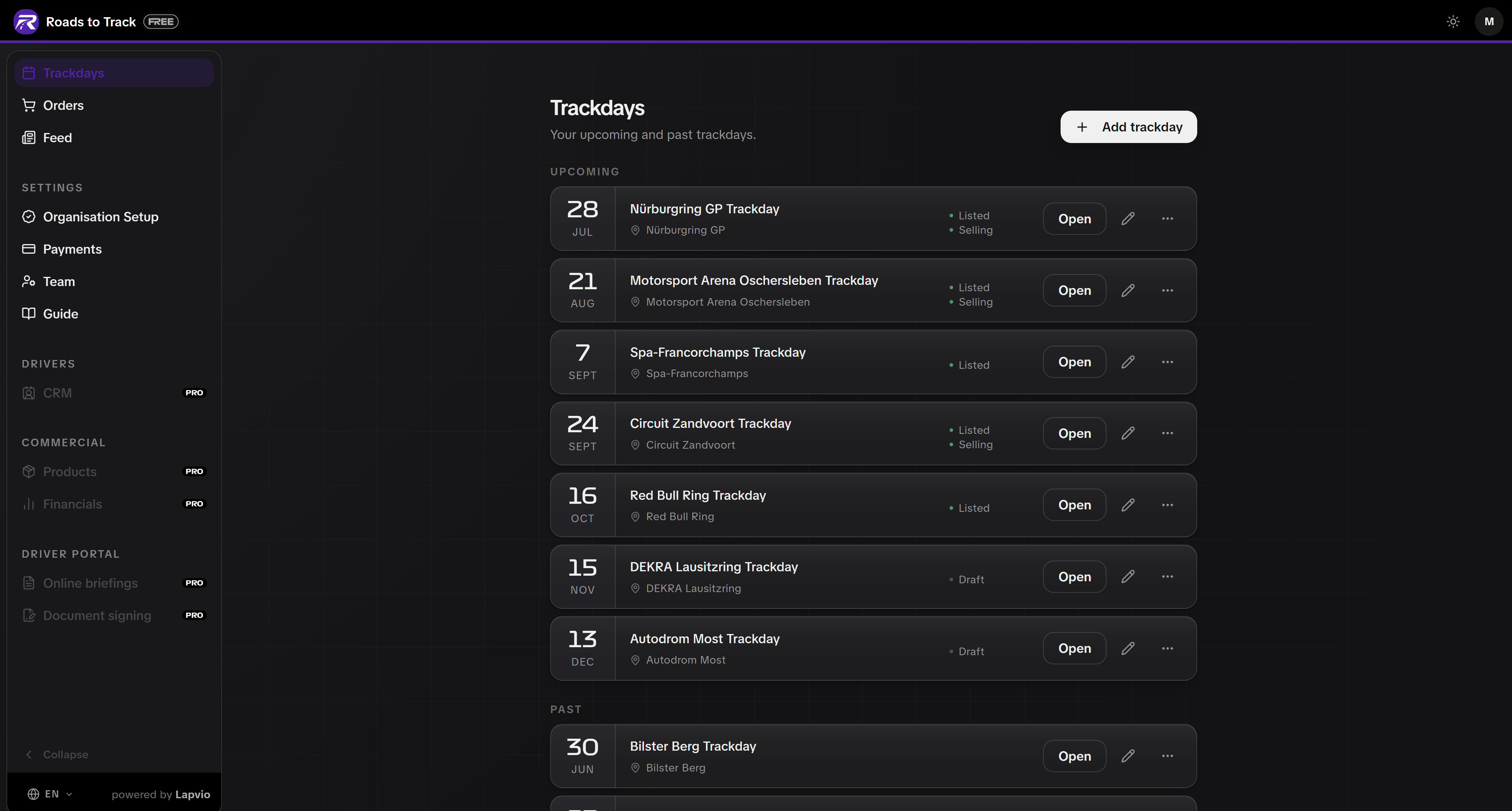
Once your events are live, the Trackdays page is your home base. You can run as many as you like on the FREE plan.
Keep the list current
Events are grouped into Upcoming, Past and Archived. From any row you can:
- Edit the setup at any time, including after publishing.
- Duplicate an event to start the next one from a copy. It arrives as a fresh draft, so nothing goes public by accident.
- Archive a finished event to tuck it away, and unarchive it if you need it back.
- View in catalog to open the live public page exactly as a driver gets it.
Duplicate is your season planner
Set one event up properly, then duplicate it for every date of the season. You change the date and the cover photo, everything else is already right.
Sold out, and the waitlist
Open an event and use Mark as sold out. The public page swaps the booking button for a waitlist sign-up, and every driver who joins appears in the waitlist panel on that event, with their name, email and language.
From there you send a slot offer when someone cancels. Offers are first come, first served: the first driver to book takes the spot. Reopen bookings puts the event back on sale.
The waitlist works whether you sell on Lapvio or link out to your own booking page. A full event is a demand signal, not a dead end.
Post to your Feed
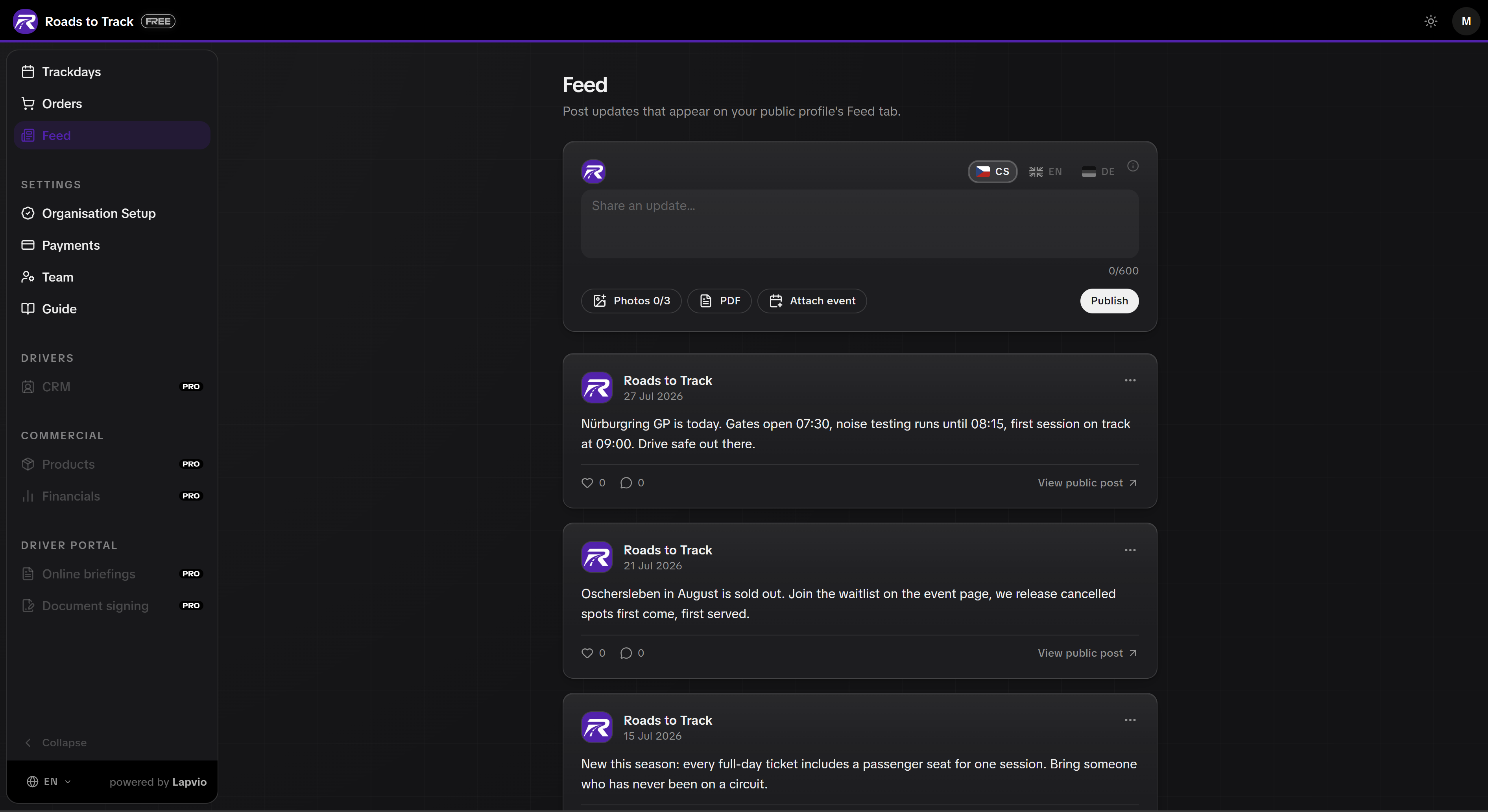
Feed publishes updates to your public profile and into the feeds of drivers who follow you. A new date, a spot that opened up, a result, a photo set.
You can write each post in more than one language using the language tabs, and drivers see it in their own.
Your cancellation policy
Your default refund policy lives under Payments, on the Cancellation policy tab. Set refund tiers based on how far ahead a driver cancels, and it applies across all your events. Any single event can override it in its Extras and cancellation section.
When PRO is worth it
FREE covers listing your trackdays and even selling tickets with card payments. PRO adds the operational side of running the day.
| You want to | PRO feature |
|---|---|
| Keep a database of everyone who has driven with you, with notes and history | Driver CRM |
| Run the safety briefing online before drivers arrive | Online briefings |
| Collect signed waivers digitally | Document signing |
| Split the day into run groups with capacity per group | Sessions and groups |
| Give staff and marshals limited access | Team roles and permissions |
| See revenue, costs and margin per event | Financials |
| Reuse add-ons across every event | Add-on catalog |
Upgrade when you feel the limit
PRO features stay visible in your admin, greyed out, so you always know what is there. There is no rush. List freely, sell freely, and upgrade when running the day inside Lapvio would save you real hours.