Selling on Lapvio is two steps. First you describe what you offer. Your session types and their prices. Then you publish when. Dated, priced slots drivers can book and pay for. Both live under Offering, which has three tabs: Sessions, Availability, and Events.
Step one: your session types
A session type is a product. "Radio coaching", "Data & video analysis", a Nordschleife rookie run. You set it up once, with a price, and reuse it across every date you publish.
Open Offering → Sessions and tap Add session format:
- Type. Pick what kind it is: Passenger, Radio coaching, Data & video, Theory, or Custom.
- Name and Description. Both can be written per language (English / Czech / German) using the flag tabs.
- Duration. A preset chip (30 / 45 / 60 / 90 / 120 min) or a custom number.
- Skill level. Tick any of beginner / intermediate / advanced.
- Environment. Track, road, or sim. Vehicle. The driver's own car, your car, or any.
- Price and currency. What it costs "from".
- Bookable. Tick this so drivers can book dated slots of this type. Leave it off for a type you only mention but don't sell online.
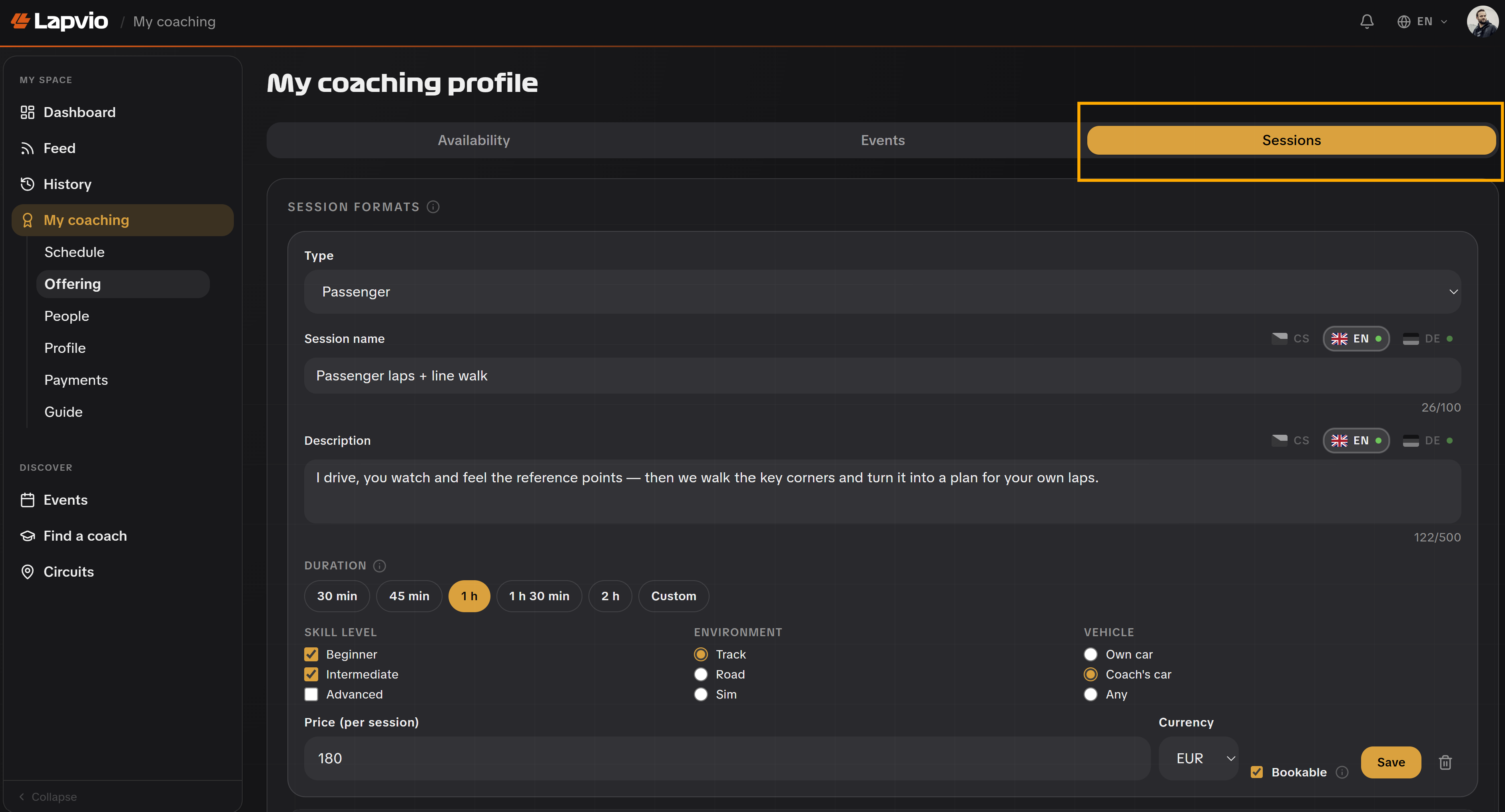
Bookable vs. just listed
Only types marked Bookable can have dates published against them. A type that isn't bookable still shows on your profile as something you offer. Useful for bespoke work you arrange by message rather than checkout.
Step two: publish dates
Open Offering → Availability to put out a slot drivers can book.
- Pick a session type. Only your bookable types appear here. Choosing one pre-fills its price, currency and duration (all overrideable per slot).
- Anchor it. Choose My own place & time, or At an event I'm attending to pin it to a trackday from the list (it inherits that event's date and location).
- For a standalone slot, set the date & time, then the location: At a circuit (search the circuit list) or Somewhere else (free-text place + country).
- Set Spots (capacity), confirm the price, currency and duration.
- Tap Publish slot.
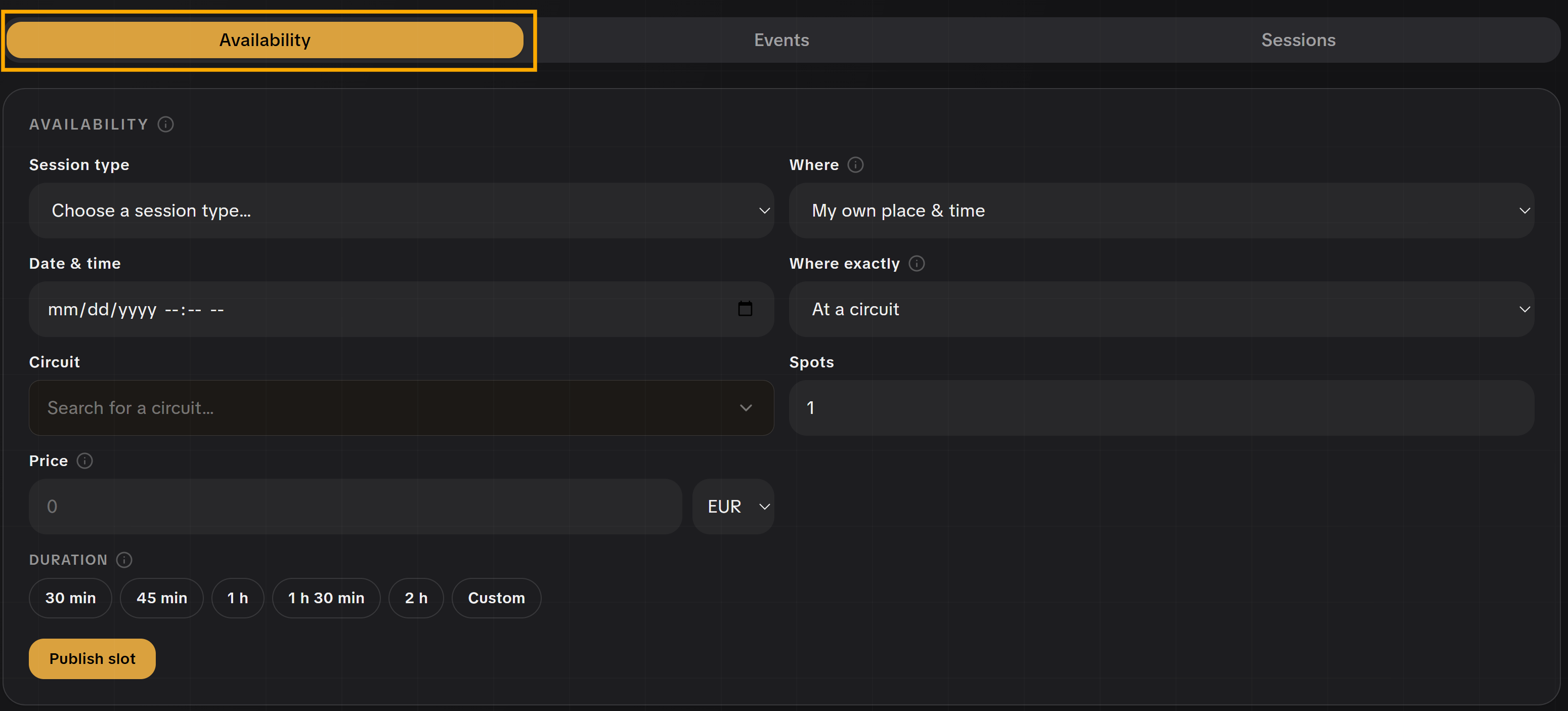
Your published slots list below, each with its date, location, a fill bar showing how many of the spots are booked, and the price. From a slot row you can:
- Edit. Adjust capacity and price (pencil icon).
- Close / Reopen. Stop or restart bookings without deleting it (the lock icon). A closed slot shows a grey Closed badge; an open one shows green Open.
- Delete. Remove the slot entirely (trash icon).
Dates go bookable only with Stripe on
A published slot can't actually be paid for until your Stripe charges are enabled. If your slots aren't taking bookings, check Payments first. Connecting Stripe is what switches them live.
Coaching at organizers' trackdays
The Events tab is for trackdays you'll be at. Search by track, event, or organizer and add the ones you're attending. They show on your public profile so drivers can book you where you already coach.
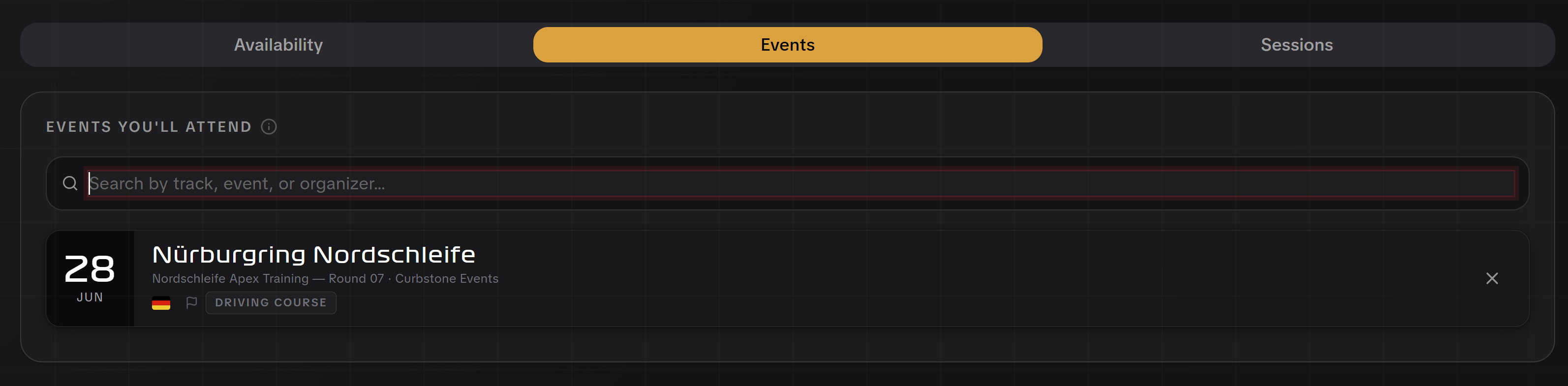
Picking an event here also makes it available as an anchor when you publish availability, so a slot can carry the event's real date and location automatically.
Where bookings land
Every confirmed booking appears in Schedule. Your agenda by date. With the driver's name, phone, car and any note they left, plus an Unpaid flag if payment is still pending. The month calendar beside it dots every date you're teaching. It's the screen to open the night before a track day.
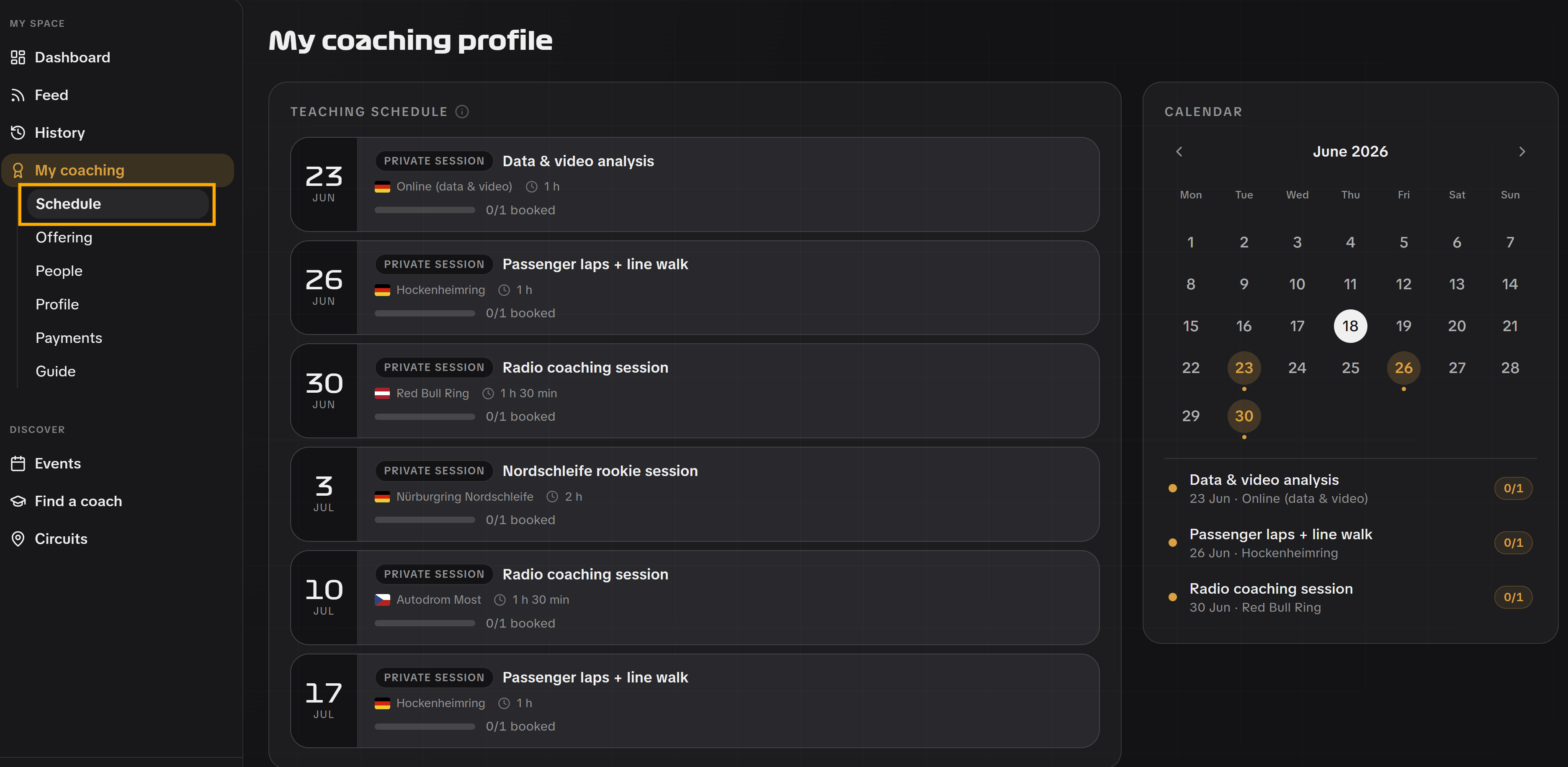
Talk to the people who booked
Each session in your Schedule carries a small toolbox for the whole around-the-session conversation:
- Instructions. Write a briefing for everyone who booked this date: where to meet, what to bring, timing. Save draft keeps it private while you polish; Send to booked emails every booked driver in one go. Drivers who use the Lapvio app also see it on their session page, and anyone who books later gets it in their confirmation email automatically.
- Open group chat. For a session with more than one spot, this creates a group chat with everyone who booked, right in the same Chats inbox you use for direct messages. Post updates once instead of messaging each person. For a one-on-one session, use the direct message from the person's detail instead.
- Switch the toggle above the agenda from Upcoming to Past sessions after the day, and two more tools appear:
- Recap. A wrap-up for the whole group: how it went, what to practice next. Send recap emails everyone who was booked.
- Evaluations. Personal feedback, one per driver, sent only to that driver.
Everything you send lands as an email from you (drivers reply straight to your inbox), and it's logged on the person's card in People. You always get a copy in your own inbox too, and every composer has a Send a test to my email link so you can check the formatting before anything goes out.
