When a driver books a dated session, they pay by card and the money goes to your Stripe account. Lapvio just takes a small service fee. Everything to do with money lives under Payments: connecting Stripe, your earnings, and the order list.
Connect Stripe
Until Stripe is connected, your bookable slots can't take payments. Connecting takes about five minutes.
- Open Payments and tap Connect with Stripe.
- You're sent to Stripe to verify your identity and add a bank account.
- When you're done, Stripe returns you to Lapvio.
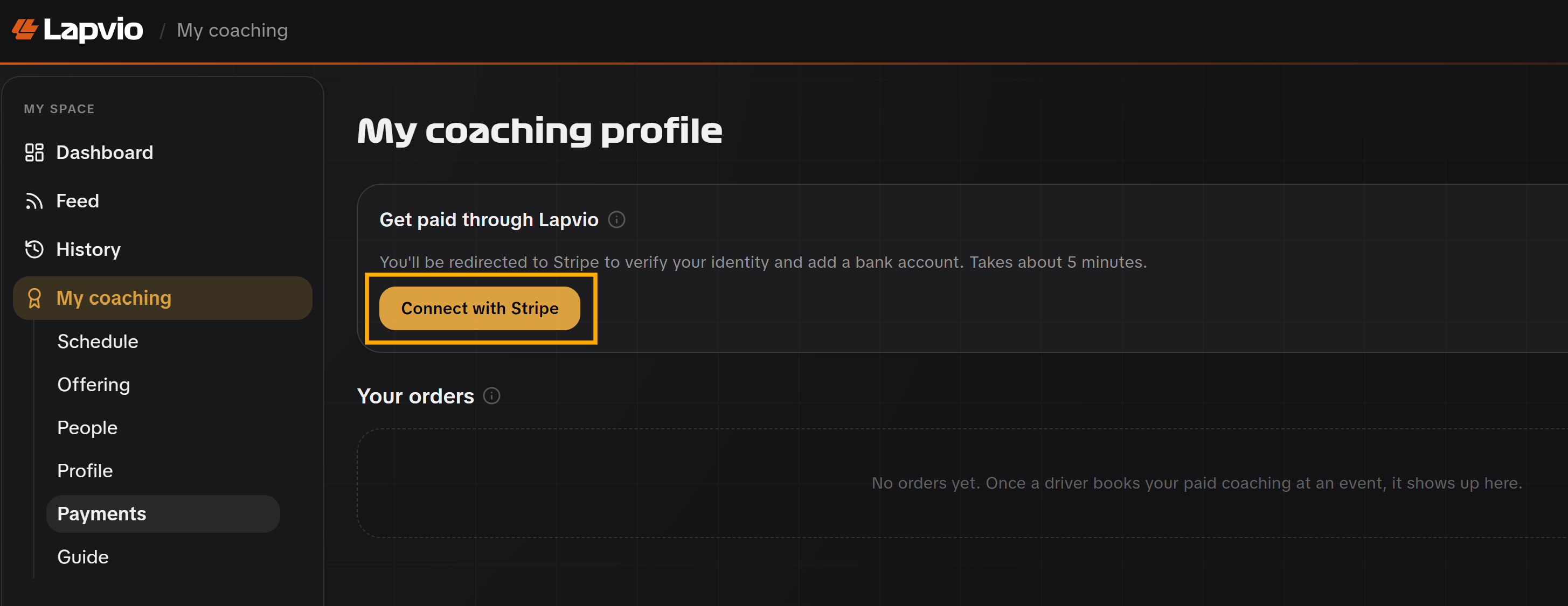
You'll move through a few states, and the panel always tells you which one you're in:
| State | What it means |
|---|---|
| Not connected | No Stripe yet. Start with Connect with Stripe |
| Onboarding unfinished | You started but didn't complete it. Tap Continue Stripe onboarding |
| Needs more info | Stripe wants extra details before enabling payments. Continue onboarding to clear it |
| Connected | A green dot and "you can take payments". You're live |
Charges vs. payouts
Stripe can switch on charges (you can take card payments) before payouts (money lands in your bank) finish verifying. If you see "charges are enabled; payouts are still pending", you can already sell. Stripe just needs another step before it pays out.
Your earnings
Once you've made sales, an earnings summary appears showing your net. What you keep after the fee. Broken down per currency. Each card reads as a big net figure with the gross and Lapvio fee underneath, and the order count.

You'll also see a snapshot of this month's earnings on your main dashboard (Cockpit), so you don't have to open the workspace to check.
Currencies don't add up
Earnings are shown per currency and never summed across them. €, £ and CZK each get their own card, because there's no single live rate to merge them honestly.
Orders and refunds
The Sales table lists every order: the date, a reference (with an invoice link), the session and when/where it is, the buyer, the total with your net underneath, and a status badge. Paid, Partially refunded, or Refunded.
To refund a booking, open the ⋯ menu on its row and choose Cancel & refund. A confirmation dialog shows exactly what will happen:
- The driver is refunded in full and their seat is freed.
- They get an email confirming the refund.
- It can't be undone.

For payout schedules, pending transfers and anything Stripe-side, use Open in Stripe to jump to your Stripe Express dashboard in a new tab.
Disconnecting
You can disconnect Stripe from the Payments tab. Read the confirmation first: disconnecting closes your open bookable slots and you won't be able to take payments until you reconnect. It's there for changing accounts, not something to toggle casually.
Disconnecting takes you off sale
The moment you disconnect, open slots close and new bookings stop. Existing paid bookings are unaffected, but reconnect before you publish new dates again.