Listing a trackday puts it on your public profile and into Lapvio's trackday discovery, where drivers browse by circuit, country and date. Open Trackdays and tap Add trackday.
Step 1: create it
The create form is deliberately short. Name, circuit, date, start and end time. Save, and the event exists as a draft that only you can see. Saving takes you straight into its setup.
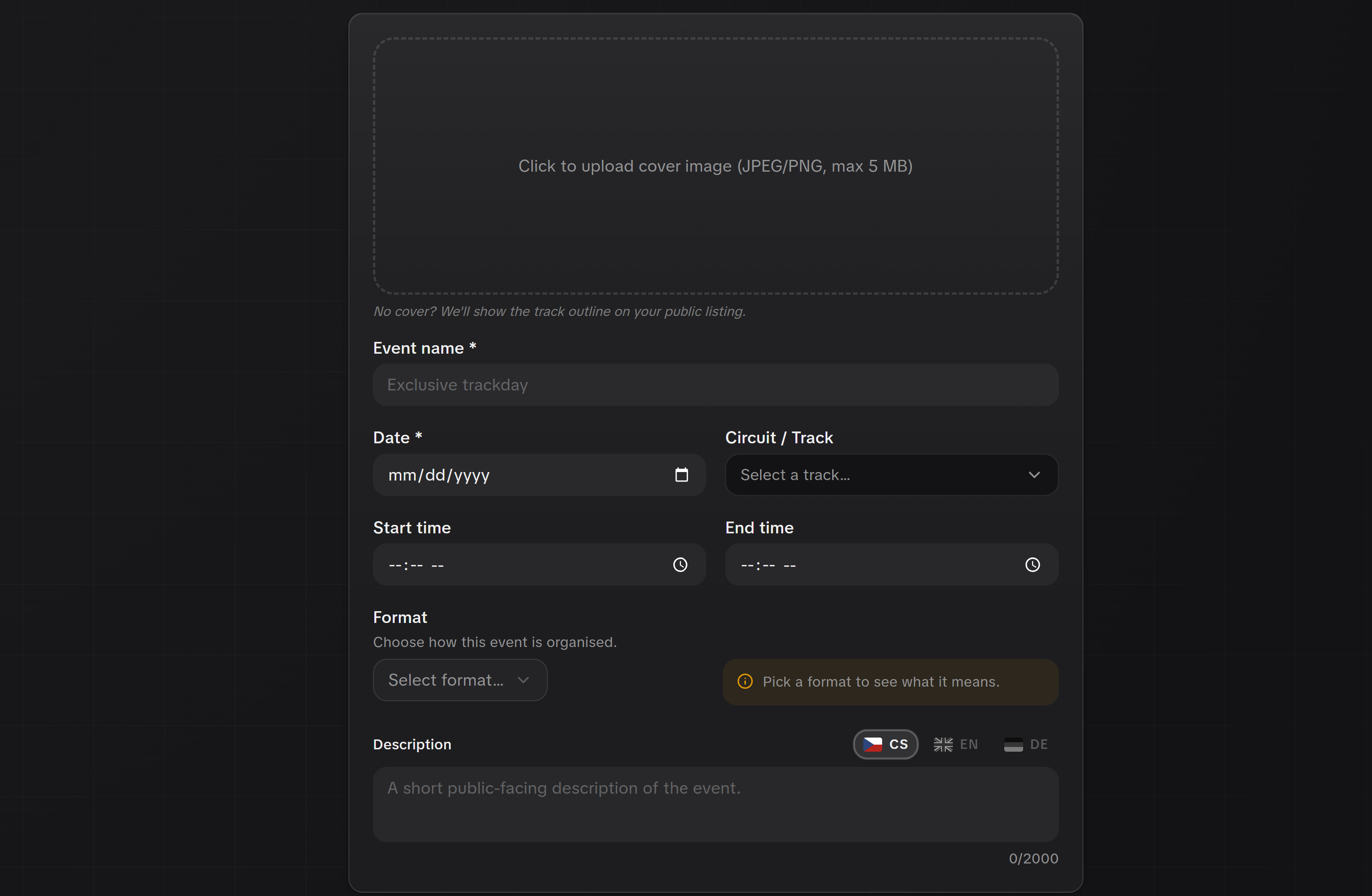
Circuit missing?
Search the circuit list first, most European circuits are already in it. If yours genuinely is not there, use the link in the field to tell us and we add it.
Step 2: fill in the setup
Opening a draft gives you a setup rail down the left. Work through it in any order. Each section saves on its own.
Basics
The full event description, the format (open pitlane, sessioned, race and test, competition, driving course, ice driving, mixed), and your cover image. The cover is the wide photo drivers see on the catalog card, so use a real photo from one of your days.
Eligibility
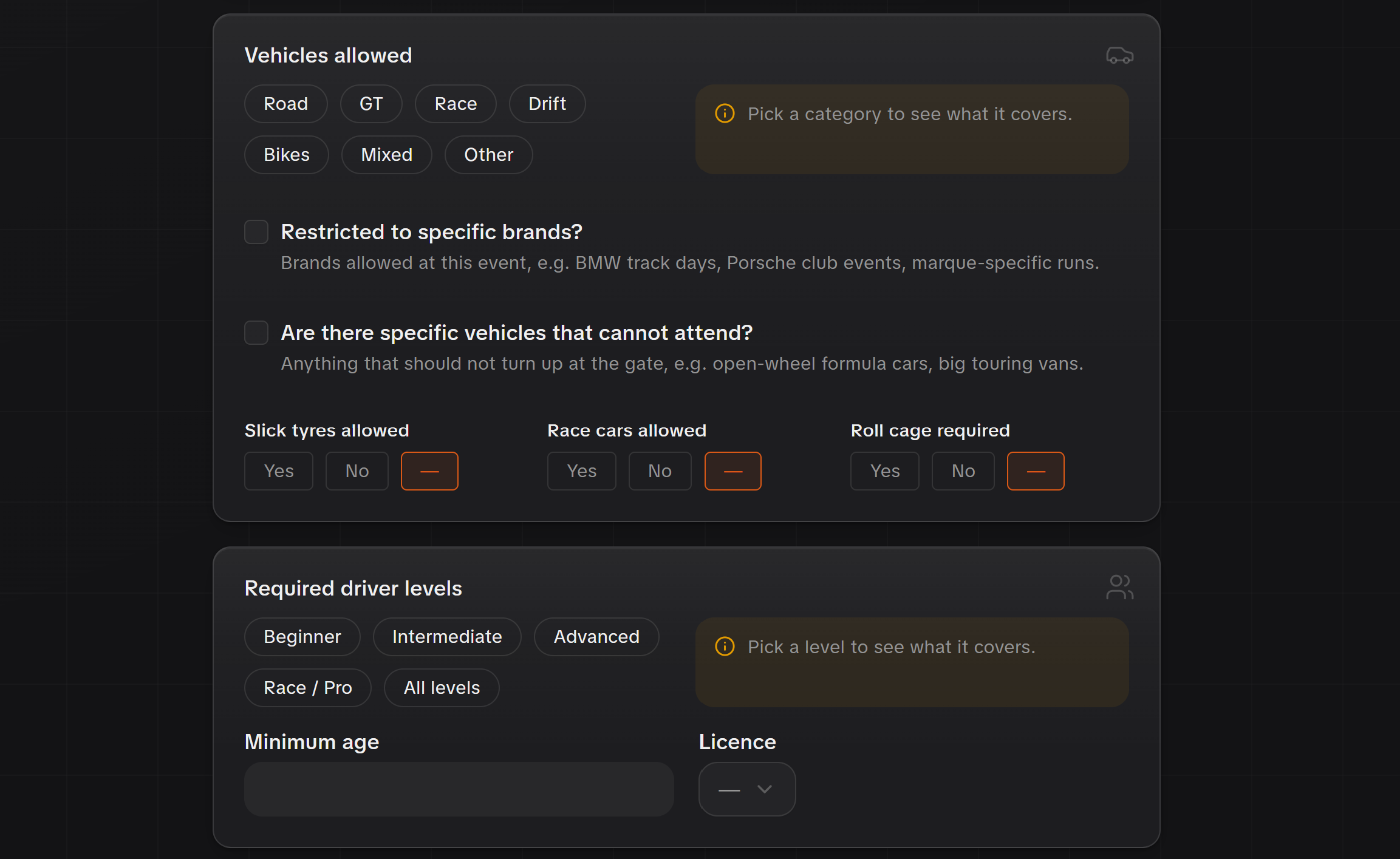
Who the day is for, and what is allowed on track. Driver levels from beginner to race and pro, minimum age, licence requirement, which vehicle categories are welcome, plus technical rules such as roll cage or slick tyres. Drivers filter on these, so being precise gets you the right entries and fewer refunds.
Sell and price
Two choices in one card:
- On Lapvio. Drivers book and pay right on your event page. See Sell tickets on Lapvio.
- Somewhere else. You set a base price so the catalog shows a from-price, and you link out to your own booking page.
You can switch between them at any time.
Extras and cancellation
Available once you sell on Lapvio. Add per-event add-ons such as a garage box, lunch or an instructor session, and override your organisation's refund policy for this one event.

PRO adds a saved add-on catalog, so you build each extra once and reuse it across every event instead of retyping it.
Sessions and groups
PRO, and it stays visible in the rail so you can see what it does. Sessions split the day into run groups with capacity per group.
Driver portal
Once you sell on Lapvio, every driver who books gets their own page with their booking, their details to fill in and their check-in code. Two things here are yours to set:
- Driver portal access opens or closes that page for everyone on this event. It's open by default; close it if you need drivers held off for a while.
- Driver reminder picks when your drivers get an email saying the trackday is coming, with their schedule and check-in code. Choose a number of days before the event, a specific date, or turn it off. New trackdays are set to 14 days.
PRO adds the rest of the portal: a safety briefing drivers complete at home, digital waiver signing, and a session-by-session schedule. Those steps can also be held shut until closer to the event, so nobody reads the briefing three months early.
Step 3: show it in the catalog
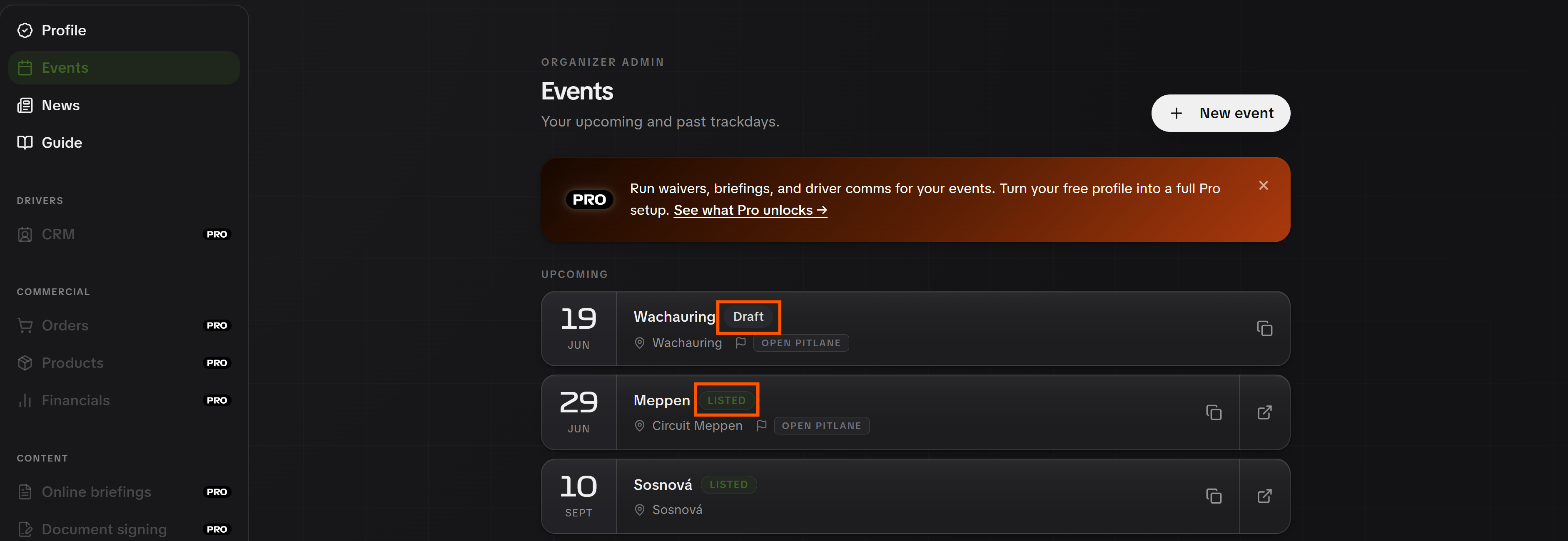
A new event stays a draft until you publish it. The last step in the setup rail is Publish, and there is a Show in catalog item in the row menu on the Trackdays list too.
That one action puts it on your public profile and into trackday discovery, and it alerts the drivers who follow your organisation or that circuit. Hide from catalog takes it back to draft whenever you need.
Next: manage your trackdays once they are live.